
Edit Text in Image with the Same Font
Edit text in images while keeping the exact same font, size, and color. AI matches the original typography automatically. No fonts to install. Try free!
- No Download Required
- Free to Try
- AI-Powered
Workspace
Click to Upload or Drag & Drop
Supports JPG, PNG (Max 8MB)
Tips
The AI analyzes this text to "learn" the font style.
- You can add multiple text changes, spend 1 credit only total.
- Fix it below if origin text is wrong (e.g. 'He11o' → 'Hello')
- Do NOT change it if origin text is right
OCR can be wrong. Ensure this matches the text in the image exactly for best removal results.
See the case
Seamlessly edit any text on an image, seamlessly integrating it with the original.
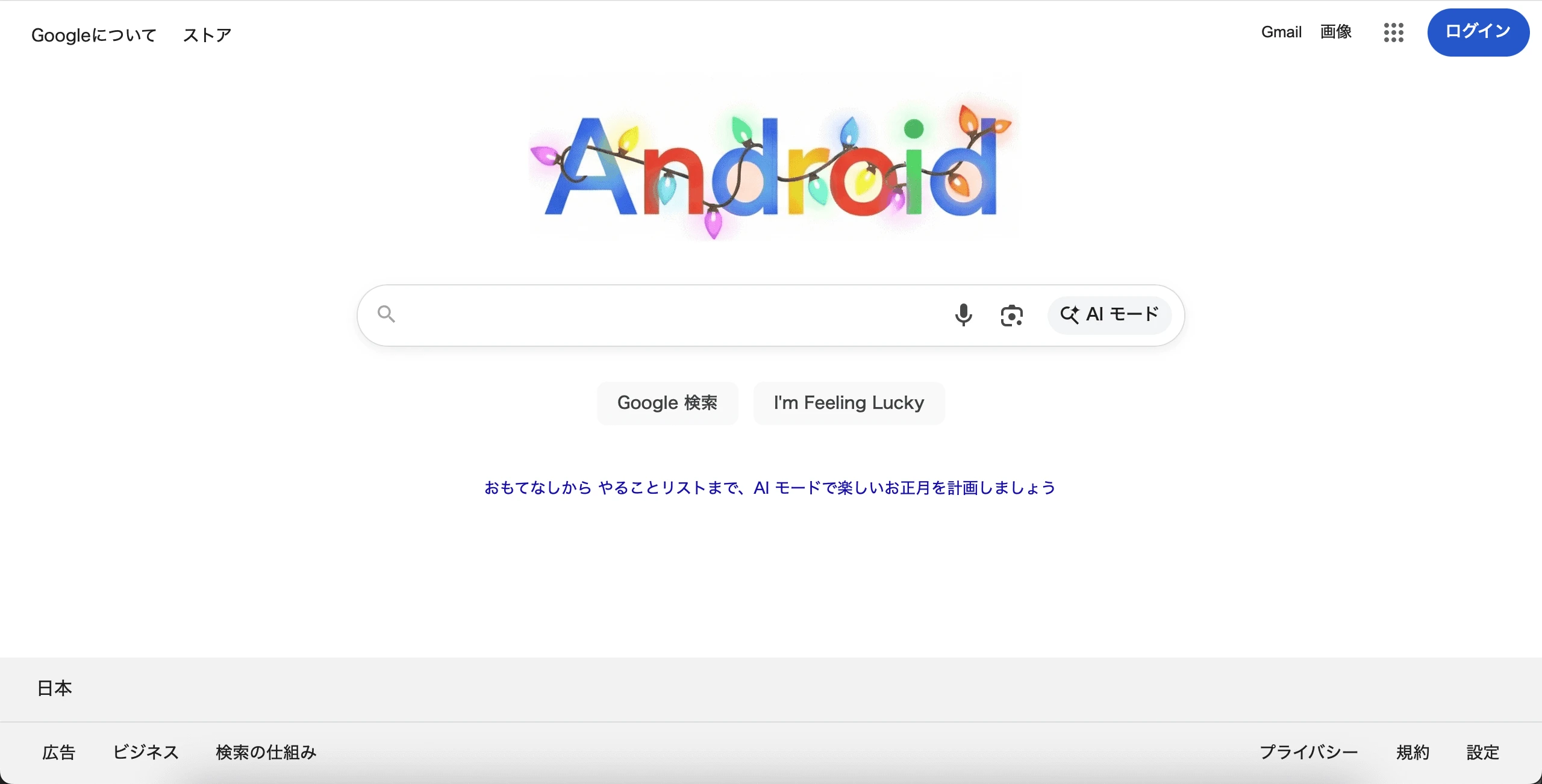
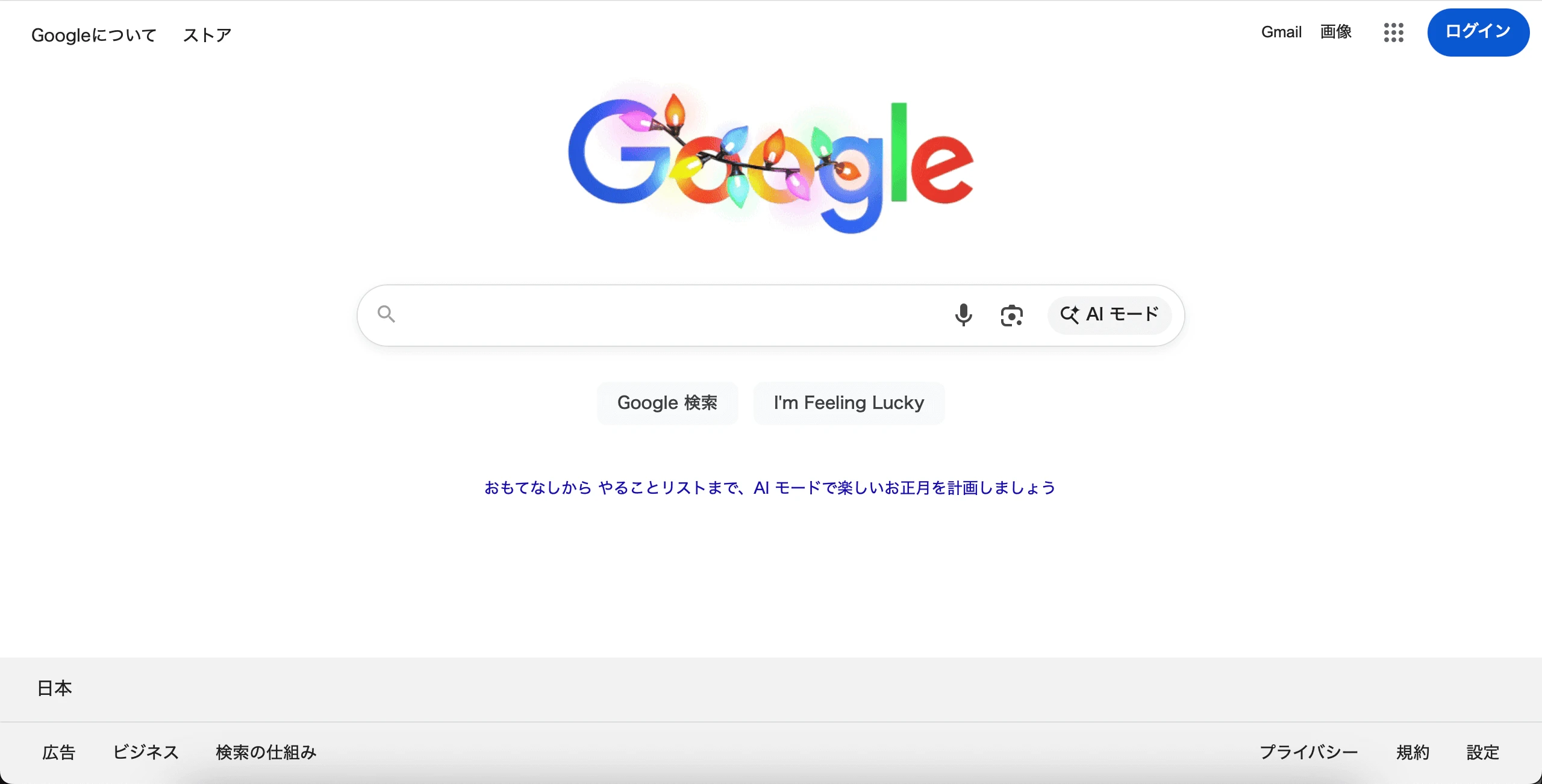
Workspace
Click to Upload or Drag & Drop
Supports JPG, PNG (Max 8MB)
Processing...
Why Edit Text in Images with the Same Font
Automatic Font Detection
You never have to identify or download the original typeface. The AI reads the surrounding letters and reproduces the same font family, weight, and spacing in your new text.
No Font Files to Install
Traditional editors force you to hunt for the exact font before you can match it. ReWords.AI rebuilds the characters directly, so no font licensing, downloads, or installs are needed.
Preserves Size, Color, and Kerning
The edit keeps letter height, color, and the gaps between characters consistent with the original, so the replacement text lines up perfectly with the rest of the design.
Seamless Blend with the Background
Beyond the font itself, the AI keeps shadows, gradients, and textures intact so the new text looks like it was set in the same typeface from the start.
How to Edit Text in Image While Keeping the Same Font
Match the original font in four steps. There is nothing to configure—the AI handles typography detection for you.
Upload Your Image
Drop any PNG, JPG, or WebP into the editor. Posters, logos, packaging, and social graphics all work, and the AI will analyze whatever font is already in the picture.
Select the Text to Change
Draw a box around the words you want to edit. A tight selection helps the AI sample the exact font style, weight, and color of those characters.
Type Your Replacement Text
Enter the new wording. You do not need to specify a font—the AI defaults to matching the original. Add a note only if you want a deliberate style change.
Generate and Download
Click Generate and the AI renders your text in the same font as the source. Review the match and download the result in full resolution.
When You Need to Keep the Same Font
Font consistency matters most when an image is part of a brand, template, or official document. These are the situations where matching the original typeface counts.
Brand and Logo Updates
Change a tagline or product name inside brand assets without breaking the corporate typeface. The AI keeps every letter on-brand so the update looks official.
Template Reuse
Swap names, dates, or titles into a designed template and keep the same font throughout. Perfect for invitations, flyers, and reusable social layouts.
Product Packaging and Labels
Edit ingredient lists, sizes, or descriptions on packaging while preserving the label's original typography for a consistent shelf appearance.
Certificates and Official Documents
Correct a misspelled name or wrong date on a certificate and keep the formal typeface identical to the rest of the document.
Signage and Menus
Update prices or menu items and hold the same display font across every line so the sign still reads as one cohesive design.
Localized Marketing Assets
Translate a headline into another language while keeping the campaign's signature font, so all regional versions look like part of the same set.